How to Format an Ebook
How to format an ebook for Kindle, Apple Books, Kobo and Google Play: styles, contents page, images, fonts, and EPUB export from Word and Google Docs.
 By Philip Ghezelbash
To format an ebook, write in a word processor using styles instead of manual spacing. Give chapter titles a heading style, build the table of contents from those headings, use real page breaks, add images inline with alt text, then export an EPUB or upload a Word file. Check the result and preview it on a phone before you publish. Most ugly or rejected ebooks come from skipping styles and spacing text by hand.
This guide covers the rules that work in every store, then Word, Google Docs and the specifics for each store. Canva is a design tool and works differently, so it has its own guide. We checked the official help pages for Amazon KDP, Apple Books, Google Play Books, Kobo, Microsoft, Google and the W3C in October 2026, and we say where a page was unclear.
Reflowable or fixed layout?
First decide what kind of ebook you are making, because the rules differ.
Reflowable ebooks let the reader change the font and text size, and the text re-wraps to fit the screen. The W3C describes reflowable content as formatted on the fly instead of being laid out page by page in advance. Apple says a flowing book is ideal for books that are mostly text. KDP says reflowable suits text-heavy titles, and Kindle Create turns Word files into reflowable ebooks.
Fixed layout ebooks keep every page exactly as designed, like a PDF. The W3C says page-precise layouts are needed for children’s books, comics and manga, magazines and similar books. KDP notes that fixed layout and print replica books do not let readers change font settings and do not support screen readers.
For most nonfiction, novels and guides made mainly of text, choose reflowable. The rest of this guide assumes that.
Which file does each store want?
| Store | Accepted ebook files | Notes |
|---|---|---|
| Amazon KDP | EPUB, DOCX and KPF are the recommended types. | KDP says it no longer accepts MOBI for new or updated books. PDF is accepted only for some languages. See our KDP guide. |
| Apple Books | EPUB | Apple’s asset guide supports EPUB 3.3. See our Apple Books guide. |
| Google Play Books | EPUB and PDF | Files must be validated by EPUBCheck and be under 2 GB. See our Google Play guide. |
| Kobo | EPUB, DOC, DOCX, ODT and MOBI | Kobo converts non-EPUB files to EPUB. See our Kobo guide. |
| Your own site | PDF or EPUB | PDF opens everywhere, EPUB needs a reader app. See PDF vs EPUB. |
KDP’s file types page still has a MOBI row, but a note there and its MOBI FAQ say MOBI is no longer accepted. The FAQ says KDP stopped accepting MOBI for reflowable ebooks on August 1, 2021 and for fixed-layout ebooks on March 18, 2025, so use EPUB, DOCX or KPF.
11 formatting rules that work in every store
- Use styles. Set a style for body text and apply Heading 1 to every chapter title. Use Heading 2 and Heading 3 for sections inside a chapter. Stores and ebook readers build navigation from these.
- Set the body style once. KDP’s Word guide suggests a first-line indent of 0.2 inches (5 mm), single line spacing and 0 points before and after paragraphs. Use either indents or extra spacing between paragraphs, not both.
- Do not use tabs or spaces to indent. KDP says tabs do not convert to Kindle. Press Enter only to start a new paragraph.
- Use real page breaks. In Word, choose Insert, then Page Break. Do not press Enter many times to push text to the next page.
- Leave out headers, footers and page numbers. Ebooks are reflowable, so page numbers and page counts do not apply.
- Put images inline. Avoid text boxes and shapes for diagrams and insert them as images instead. KDP does not support TIFF, multi-frame GIF or transparent areas, which turn white. Use RGB (sRGB) images, not CMYK, and add alt text to every informative image.
- Use real tables. Do not paste a table as an image. KDP says tables with more than 1,800 cells and 20,000 characters are not supported, and recommends keeping them under 100 rows and 10 columns.
- Leave the font alone. KDP recommends the default fonts, no fixed point or pixel sizes, and avoiding thin fonts. You can embed fonts, but they need a license, and readers can override them.
- Add a table of contents. KDP says a logical table of contents, the one in the reader’s Go To menu, is required for every Kindle book, and a clickable contents page is strongly recommended.
- Keep the cover separate. Do not put the cover inside the manuscript. Upload it as its own file. KDP recommends a cover 1,600 pixels wide by 2,560 pixels tall, saved as a JPEG in RGB, 5 MB or smaller. Our ebook cover size guide lists sizes for each store.
- Turn off Track Changes and remove comments before you export.
A common order for the front of the book is title page, copyright page, dedication, contents, then chapter one. Put your author bio, a call to action and links to your other books at the back.
How to format an ebook in Word
Word is the most common starting point, and KDP and Kobo both accept Word files.
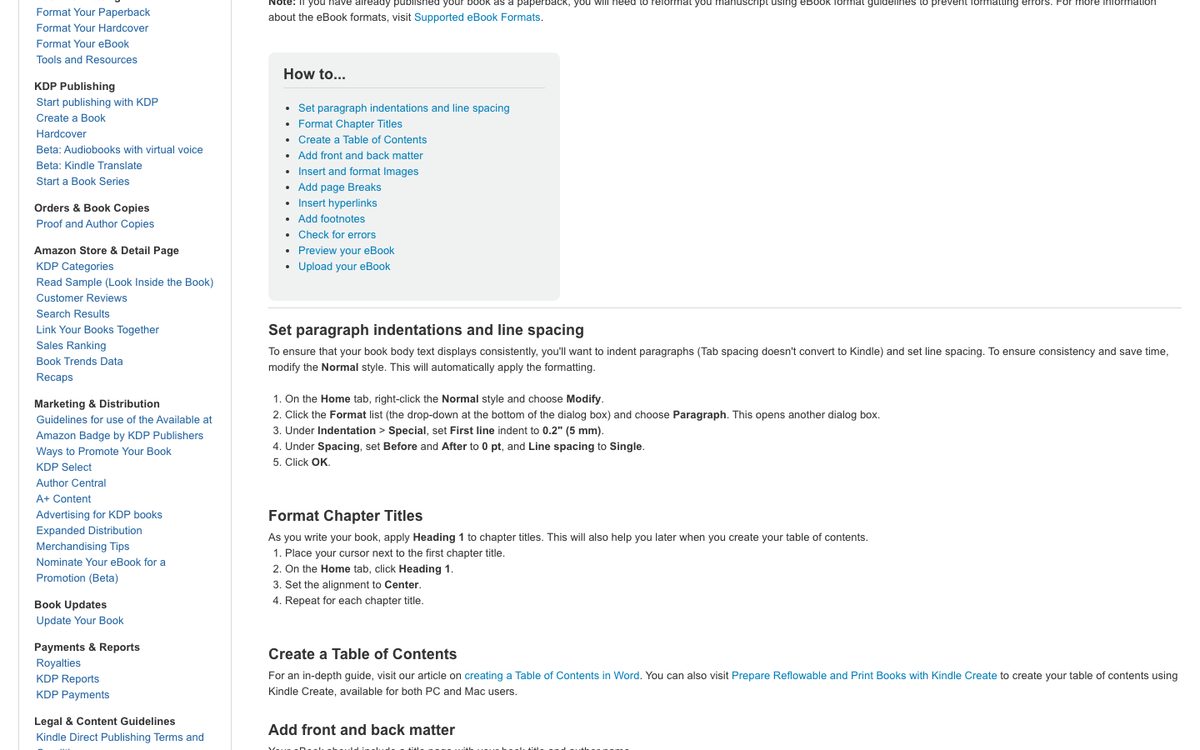
- Set your styles. Open the Normal style and set the first-line indent, single spacing and 0 points before and after. Apply Heading 1 to each chapter title and Heading 2 to sections.
- Clean pasted text. Paste as plain text, then apply styles. Text pasted from a web page often carries hidden fonts and spacing.
- Add page breaks between chapters with Insert, Page Break.
- Insert images inline and add alt text to each one.
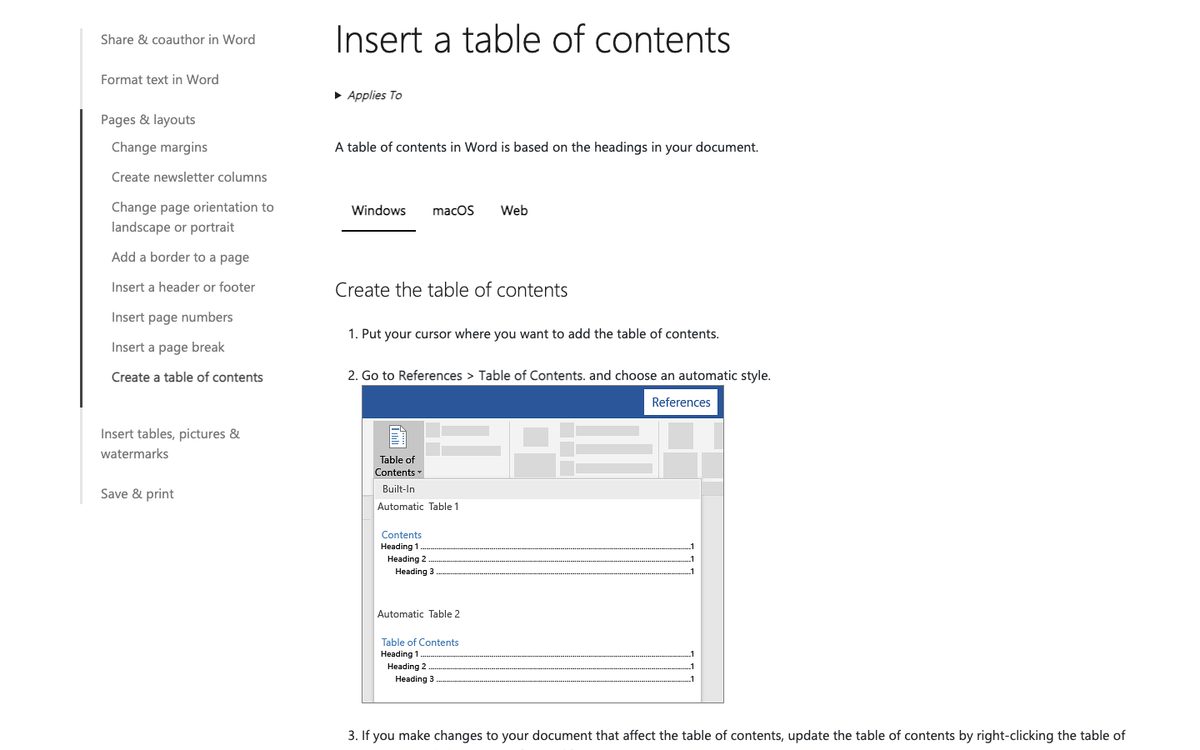
- Build the table of contents. Microsoft’s steps are to apply heading styles, then choose References, Table of Contents, and update it when you finish. KDP’s table of contents guide adds that you should set the table to one level with page numbers turned off, and add a bookmark named “toc” at the contents page if you upload the Word file.
- Remove headers, footers and page numbers.
- Save as DOCX. Upload it to KDP or Kobo, or convert it yourself.
Word does not have a built-in EPUB export. Microsoft’s own list of the file types Word can save includes DOCX, PDF, RTF, plain text and web page, but not EPUB. To get an EPUB, use our free Word to EPUB converter, Kindle Create or another converter. Kobo’s conversion guide also says to avoid columns, headers, footers and page numbers, and to use JPG or PNG images up to 3 MB.
KDP says most Word files convert well, but complex formatting may not, so always check the result in Kindle Previewer.
How to format an ebook in Google Docs
- Apply heading styles. Use Format, then Paragraph styles, and set Heading 1 for chapter titles and Heading 2 for sections.
- Insert a table of contents with Insert, then Page elements, then Table of contents, and pick a style without page numbers.
- Add page breaks between chapters.
- Insert images inline and add alt text.
- Download as EPUB. Choose File, Download, then EPUB Publication (.epub).
Google announced the EPUB export in 2016, and its current Docs help still lists EPUB as an export format. Check that the option appears in your File, Download menu. Third-party guides say headings, the contents page, images and page breaks carry over, but the result needs checking. Run the file through the EPUB checker before you upload it. If you need to fix a metadata field or a typo afterward, use the EPUB editor.
What about Canva?
Canva exports fixed-layout files. Its download options include PDF, PNG, JPG, SVG and several others, and EPUB is not on its list. That makes Canva a good tool for covers, lead magnets and designed PDFs, and a poor choice for a reflowable ebook you want to sell in stores. Our guide on making an ebook in Canva shows the full process, and our PDF vs EPUB guide explains when each format fits.
Kindle and KDP specifics
- Accepted files. EPUB, DOCX and KPF are recommended, and MOBI is not accepted for new or updated books.
- Kindle Create is a free tool for Windows and Mac. It imports Word files, and PDFs for print replica books, and exports KPF or EPUB.
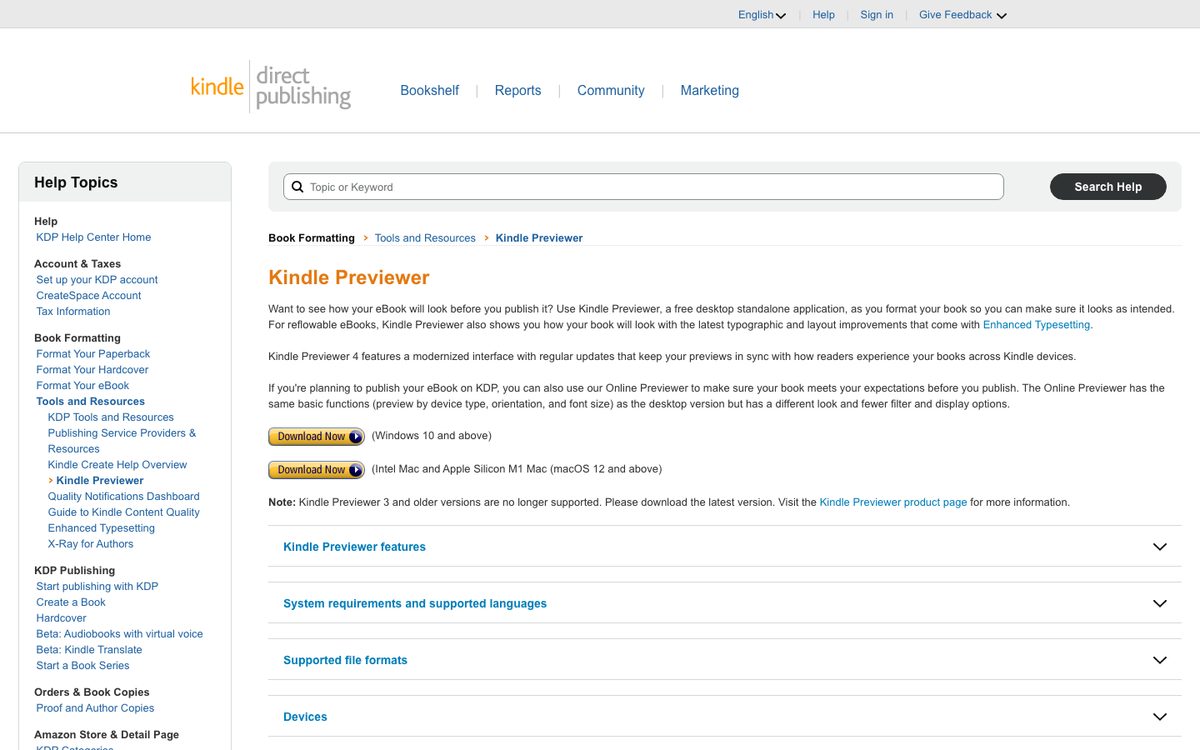
- Kindle Previewer is a free desktop app that shows how your book looks on Kindle devices and apps. It accepts EPUB, KPF and, for English books, DOCX, converts EPUB to KPF and logs errors.
- Contents page. A logical table of contents is required, and EPUB files should use a nav element marked as the table of contents with clickable links.
- Upload steps. See our KDP publishing guide.
Apple Books, Google Play Books and Kobo specifics
- Apple Books supports EPUB 3.3 and requires alt text on images. Fixed-layout books need a pre-paginated setting in their metadata.
- Google Play Books accepts EPUB and PDF, each under 2 GB, and says EPUB files must be validated by EPUBCheck.
- Kobo accepts EPUB and Word files and converts them. It recommends validating your EPUB with any validator and testing on at least two reading platforms.
Apple’s current asset guide says images inside the book cannot be larger than 5.6 million pixels, and cover art should be RGB and at least 1,400 pixels on the short side.
Check your file before you publish
- Validate it. EPUBCheck is the standard checker for EPUB files. It is a W3C project maintained by DAISY. You can also use our EPUB checker, which runs in your browser.
- Preview it. Open it in Kindle Previewer for Amazon, and test the EPUB in at least one reading app on a phone and one on a tablet or e-reader.
- Click everything. Test every table of contents link, every chapter start, every image and every external link.
- Check the cover. It should look sharp at thumbnail size.
Common formatting mistakes
KDP’s quality page lists problems that readers notice and report:
- Page numbers typed into the text.
- Hard page breaks in the middle of a section.
- Missing indents or paragraph spacing.
- Forced text colors or sizes that ignore the reader’s settings.
- Large margins or padding on the sides.
- Tables that get cut off.
- The whole book as scanned images.
- Blurry images.
- A table of contents with broken or out-of-order links.
- A cover with extra margins.
Add two of our own: leaving Track Changes on, and sending a PDF from a design tool to a store that wants EPUB.
Accessibility basics
Good formatting is also good accessibility. Add alt text to informative images (decorative images can have empty alt text), keep headings in a logical order, set the book’s language, and include a table of contents. Apple and KDP both say images must have alt text. KDP presents the other steps as best practice. The W3C’s EPUB Accessibility 1.1 is the standard. It and EPUB 3.3 both became W3C Recommendations on May 25, 2023, and the W3C has updated them since. The latest versions are dated October 17, 2024 and January 13, 2026.
The European Accessibility Act also covers ebooks sold in the EU. The law has applied since June 28, 2025, and it names e-books as a covered service. Microenterprises that provide services are exempt, meaning businesses with fewer than 10 staff and no more than 2 million euros in yearly turnover or balance sheet. We do not know how it applies to every seller outside the EU, so check the rules for your situation.
Quick checklist
| Before you export | When you export | After you export |
|---|---|---|
| Styles set, Heading 1 on chapter titles | EPUB or DOCX saved | EPUB passes the checker |
| Real page breaks, no tabs | Cover as a separate file | Previewed on phone and tablet |
| Images inline with alt text | Metadata and language set | Contents links tested |
| Headers, footers, page numbers removed | Track Changes off | Cover checked at thumbnail size |
FAQ
What is the best format for an ebook?
For most stores, a reflowable EPUB. It works on Apple Books, Kobo and Google Play Books, and KDP accepts it too. Use PDF if you are selling directly and want the layout to stay fixed.
What font should I use in an ebook?
Leave the font alone. KDP recommends the default fonts, and readers can override embedded fonts anyway. Use styles for headings and body text instead of picking sizes by hand.
Can I format an ebook in Word?
Yes. Use heading styles, page breaks and an automatic table of contents, then upload the DOCX to KDP or Kobo, or convert it to EPUB. Word has no built-in EPUB export.
Can I format an ebook in Google Docs?
Yes. Use heading styles and a table of contents, then try File, Download, EPUB Publication. Check the result with an EPUB checker.
Can Canva export an EPUB?
No. Canva’s download options include PDF and image files, and EPUB is not listed. It exports fixed layouts.
How do I format an ebook for Kindle?
Use styles, a table of contents and real page breaks, then upload an EPUB or DOCX to KDP and check it in Kindle Previewer. KDP no longer accepts MOBI for new or updated books.
Do I need page numbers in an ebook?
No. Ebooks reflow to the reader’s screen, so page numbers and page counts do not apply.
How big should ebook images be?
KDP does not state a single size or resolution. It does say images should be RGB and not use transparency, and that all images need alt text. Apple says images inside the book cannot be larger than 5.6 million pixels. Our cover size guide covers covers.
Where Koobe fits
If you would rather not format by hand, Koobe does it for you. Describe your book in a sentence, edit the outline, and Koobe writes the chapters, designs four covers and exports a clean EPUB, a PDF, a print interior PDF and a cover image, with headings and a table of contents already set up. Run the EPUB through the checker and upload it. Koobe drafts chapters with AI, so check each store’s AI rules before you publish. Your first book is free to create and preview, and plans start at $23 a month billed yearly.
Describe your book in a sentence. Koobe plans the chapters, writes them, designs the cover and exports a PDF and EPUB. Your first book is free.

“Files were ready for KDP, which is what I actually needed. First book I’ve finished.”