How to Make an Ebook in Canva
How to make an ebook in Canva: pick a size, use a template, add pages, links and page numbers, export a PDF, and what Canva can’t do. Checked October 2026.
 By Philip Ghezelbash
To make an ebook in Canva, create a design at the size you want, start from a template or a blank page, add and fill your pages, link your contents page to each chapter, then download the book as a PDF. Canva is free to start, but it exports PDFs and image files, not EPUB, so it suits ebooks you give away or sell directly as a PDF. It is not the right tool for a reflowable ebook that you upload to Kindle, Apple Books, Kobo or Google Play.
This guide walks through the full process, what the free plan does and does not cover, the licensing rules for selling an ebook made in Canva, and the mistakes that cause trouble. We checked Canva’s help pages and policies in October 2026. Canva’s own ebook page gives a short five-step list but no page sizes, so for sizes we say where a source is third party.
When Canva is the right tool
Canva works well for:
- Lead magnets and short guides you send as a PDF.
- Workbooks, checklists and planners.
- Image-heavy ebooks where the layout matters.
- Covers, even if the interior comes from another tool.
It works poorly for:
- Long, text-heavy books that readers want to resize on a phone or e-reader.
- Ebooks you plan to publish through stores that want EPUB. Canva does not list EPUB among its download types, and it exports fixed layouts, which keep every page as designed. A reflowable ebook lets the reader change the text size. For that route, see our guide on how to format an ebook and PDF vs EPUB.
What you need
- Your text, ideally written and edited before you start. Many guides suggest drafting in Word or Google Docs and pasting it in, because Canva is better at layout than at long writing.
- A Canva account. The free plan is enough to start.
- Images, if you want them. Canva says it has over 3 million free stock photos and graphics, and some elements are marked Pro.
- A cover. See our ebook cover size guide and the AI ebook cover generator.
Step by step: make an ebook in Canva
1. Pick your page size first
Set the size before you design. Canva’s Magic Resize tool, which converts a design to a new size, is only on paid plans. Canva’s help says you can start a design from scratch with Custom size on the homepage, using pixels, inches, millimeters or centimeters. The smallest size is 40 by 40 pixels, and the largest is 8,000 by 3,125 pixels. For US Letter, choose inches and enter 8.5 by 11.
We could not find an official default size for ebook pages. Third-party guides use A4 (8.27 by 11.69 inches) or US Letter (8.5 by 11 inches). A narrower portrait page reads better on a phone. Gumroad, for example, suggests 6 by 9 inches for PDF ebooks. Whichever you choose, keep it for the whole book.
2. Start from a template or a blank page
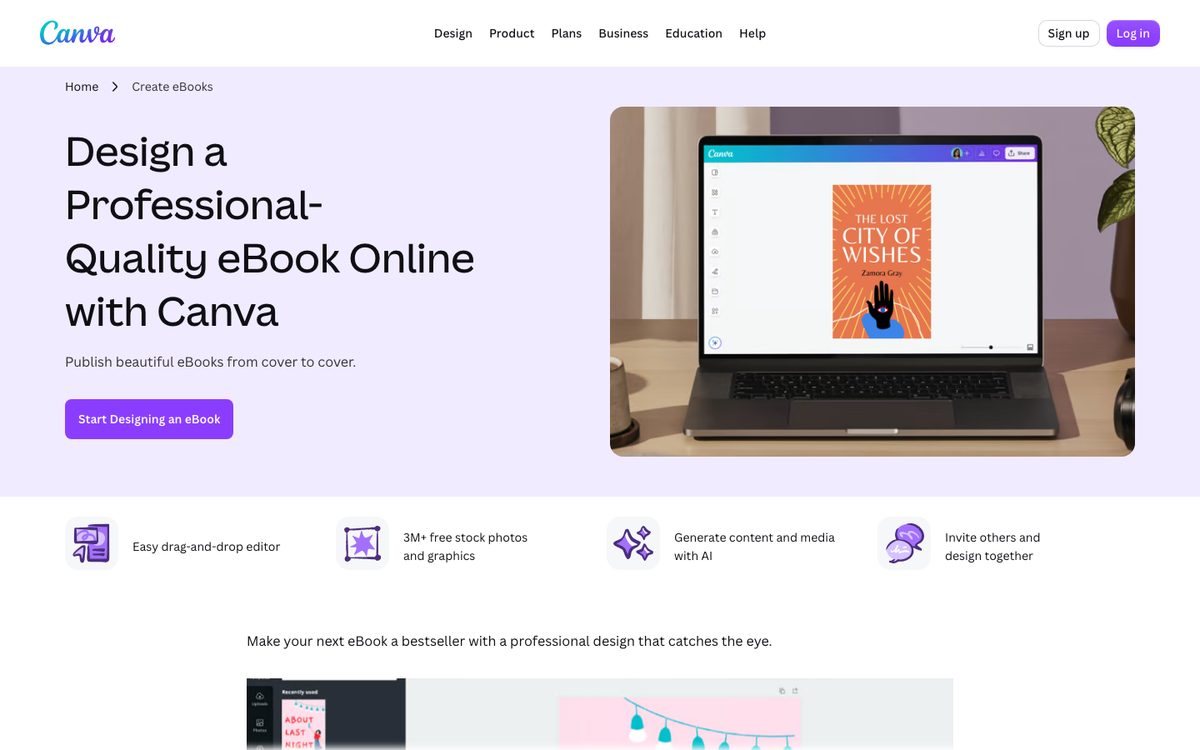
Canva’s ebook page offers templates and says you can create for free. One guide notes that searching for “ebook” mostly shows covers, and that searching for “ebook pages” finds interior templates. Pick a template you can customize heavily, because Canva’s rules do not let you sell a template unchanged (see the licensing section).
3. Add and arrange pages
Use the plus icon to add pages, duplicate a page you like, and drag pages around in grid view. Canva’s help says a design can have up to 350 pages. Build repeatable layouts for chapter openers, body pages and callouts so the book looks consistent.
4. Add your text and fonts
Paste or type text into text boxes. For readability, one third-party guide suggests body text around 12 to 14 points and headings from 18 to 24 points, and you should check the result on a phone. Uploading your own fonts works on paid plans (Pro, Teams, Business, Education and Nonprofits), in OTF, TTF or WOFF format, and Canva says your fonts should be licensed for embedding.
5. Add images and graphics
Drag in photos, icons and shapes from Canva or upload your own. If you use Pro content on the free plan, you can only download a watermarked draft or buy a license for it, so stick to free elements or upgrade.
6. Add page numbers
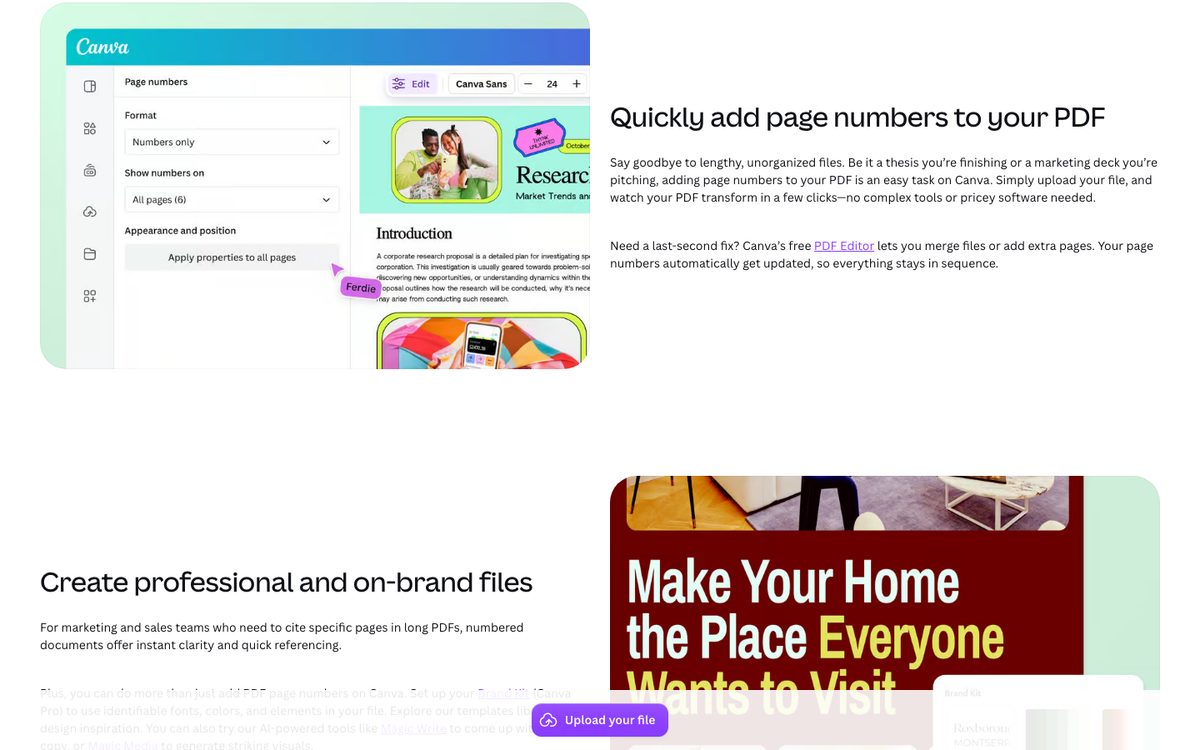
Canva has automatic page numbers. In the Text panel, choose Dynamic text, then Page numbers. You can show numbers only, “Page 4”, or “Page 4 of 40”, and apply them to all pages. They update when you add, delete or move pages. Some older guides say numbering is manual, which is out of date.
7. Make a clickable contents page
We found no automatic table of contents in Canva. Instead, build a contents page by hand, then link each line to its page. Select the text, click the More icon (three dots) on the toolbar, choose Link, and pick a page under “Pages in this document.” You can also link text or buttons to a website address.
Canva says hyperlinks only work if you download the design as a PDF, and not as a flattened PDF. We could not confirm from Canva’s help that internal page links survive in the PDF, so open the downloaded file and click every link.
8. Preview and get feedback
Preview the book at the size readers will use it. You can add comments to pages and elements, and share the design by link or email so someone else can review it.
9. Download as a PDF
Choose Share, then Download, and pick PDF. Canva’s help calls the two choices PDF Standard and PDF Print, and newer menus may show them as Digital and Print presets.
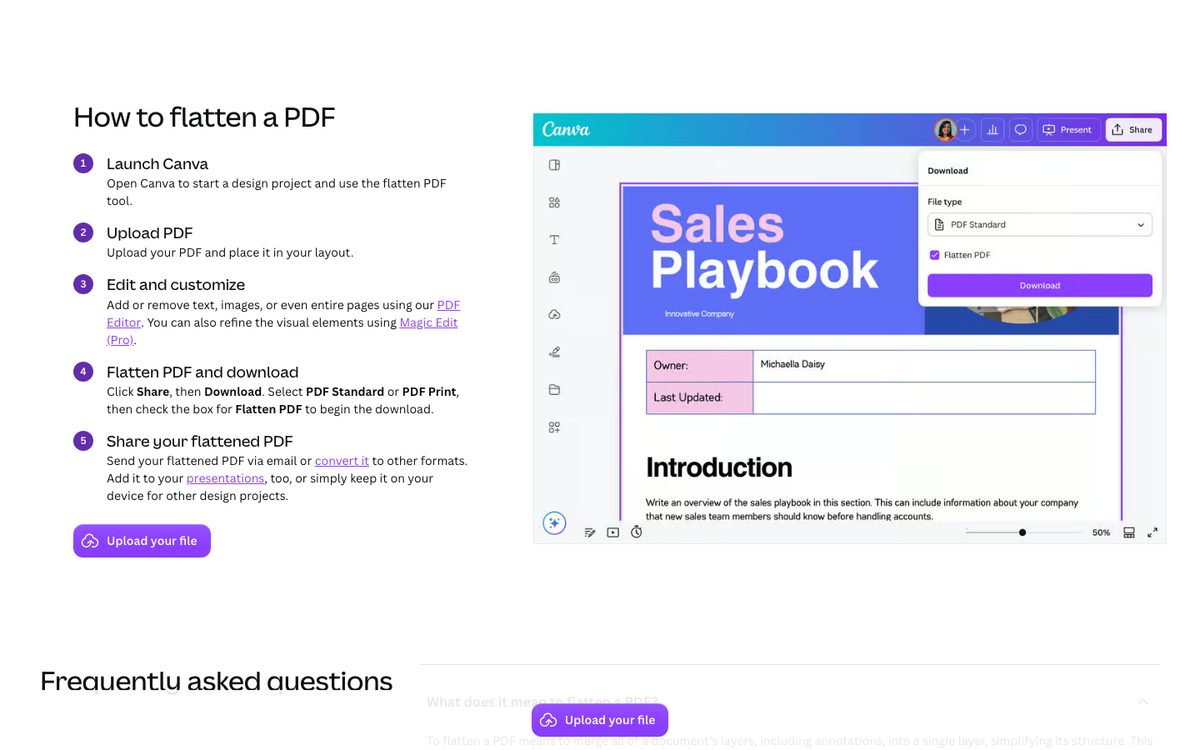
- PDF Standard is 96 dpi and suits screen reading.
- PDF Print is 300 dpi and lets you add bleed and crop marks. CMYK color is only on paid plans. Use it for print.
- Compress PDF is paid only and may lower image quality, but it helps if the file is too big to email.
Avoid the flattened PDF option for a clickable ebook. It turns the file into a static image, links stop working, and the file may get bigger.
Then open the PDF on a computer and a phone. Check every link, every page number and the file size.
Make the cover
Canva lists Amazon’s recommended Kindle cover as 1,600 pixels wide by 2,560 pixels tall (a 1 to 1.6 ratio). For other stores it suggests at least 1,500 to 1,800 pixels wide at the same ratio, for example 1,500 by 2,400 pixels. Canva says an ebook does not need a back cover. Our ebook cover size guide lists the sizes for each store, and how to design an ebook cover covers the design rules.
Free vs paid Canva
| Feature | Free | Paid |
|---|---|---|
| Templates and elements | Large free library | Larger library with premium items |
| Custom size at creation | Yes | Yes |
| Magic Resize | No | Yes |
| Upload your own fonts | No | Yes |
| Background remover and transparent PNG | No | Yes |
| Brand Kits | 1 (3 colors only) | 5 |
| Compress PDF | No | Yes |
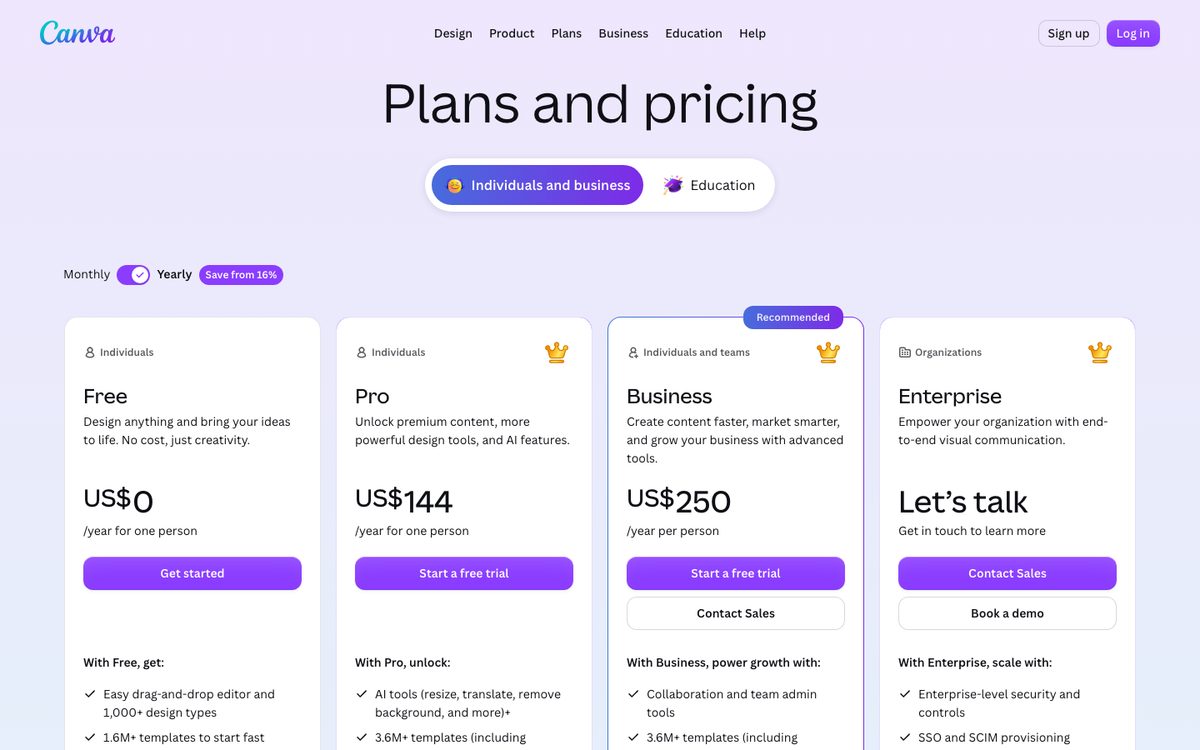
Canva’s pricing page lists Canva Pro at US$144 a year or US$18 a month for one person. The free trial is available once per account and once per payment method, and Canva does not state its length. Check the live price before you decide.
Using AI in Canva
Canva includes AI tools such as Magic Write for text and image generation. The free plan has up to 20 uses a month of its AI tools. On Pro, standard tools such as Magic Write do not count toward a limit (fair use applies), and premium tools have a monthly allowance of up to 200 uses. A Pro free trial gets only the free plan’s 20 uses.
Canva’s AI Product Terms say that, as between you and Canva, you own what you create with its AI tools, you can use it for any lawful purpose, and you must not mislead people into thinking AI content was made by a human. Canva’s help adds that many places, including the US, do not give copyright to AI-created works, and that disclosing AI help is best practice. If you sell the book on Amazon KDP, it requires you to disclose AI-generated text and images. See our guide on publishing AI-written books on Amazon.
Can you sell an ebook made in Canva?
Yes, with rules. Canva’s help says its Content License Agreement lets you use both free and Pro content to design and sell a range of products, including ebooks, as long as the design is your own work. The main limits:
- You cannot sell Canva’s content on a standalone basis.
- You can start from a Canva template, but you cannot sell the template as it is. You need to add your own content and creative effort so the book is your own design.
- If you use Pro content unedited, for example a photo alone on a page with nothing on top, each item is limited to 480,000 pixels (such as 600 by 800), so others cannot easily extract it. You also need to design with Pro content inside Canva.
- No Canva content, free or Pro, can be used in a trademark or business name, except fonts (and, per Canva’s licensing page, simple shapes and lines).
- Content marked “Editorial use only” cannot be used commercially.
One older Canva blog article says anything you sell must be created from scratch, but Canva’s help page uses the “from scratch” rule only for selling stock content such as clipart, and gives an example of a book started from a template. We follow the help page. If the licensing matters to you, read Canva’s pages before you sell.
Where to sell a Canva ebook
A Canva PDF works well when you sell the file directly. Good options are Gumroad, Shopify, Etsy or your own site. For stores that want a reflowable ebook, write the text in Word or Google Docs, convert it to EPUB, and use Canva for the cover. KDP accepts PDF for some languages, but a fixed-layout file does not let readers resize text.
Common mistakes
- Choosing the wrong page size, then needing a paid plan to resize.
- Putting too much text on a page, which is hard to read on a phone.
- Uploading fonts without a license for embedding.
- Expecting links to work in a flattened PDF, or in a PNG or JPG download.
- Using many large images and ending up with a huge file.
- Selling a template without changing it.
- Using Pro elements on the free plan, which leaves watermarks.
FAQ
Is Canva free for making an ebook?
You can start and design for free, with a large free library of templates and elements. Some features, such as Magic Resize, uploading fonts and Compress PDF, need a paid plan.
What size should an ebook be in Canva?
Canva does not state a default ebook page size in the pages we checked. Many guides use A4 or US Letter. A narrower portrait size reads better on a phone. Set it before you design.
Can Canva export an EPUB?
No. Canva’s download options include PDF, PNG, JPG, SVG, MP4 and GIF, and EPUB is not listed. SVG needs a paid plan. For EPUB, see our guide on how to format an ebook.
Can I add a clickable table of contents in Canva?
Yes, by hand. Build a contents page and link each line to its page with the Link button. Links only work in a standard PDF download, so test them.
Does Canva have automatic page numbers?
Yes. Use Text, then Dynamic text, then Page numbers.
Can I sell an ebook made in Canva?
Yes, under Canva’s Content License. You cannot sell Canva content on its own or resell a template unchanged.
Can I upload a Canva PDF to Amazon KDP?
KDP accepts PDF only for some languages and converts it. Since a PDF has a fixed layout, readers cannot resize the text. Most authors use an EPUB or Word file for Kindle.
How many pages can a Canva ebook have?
Canva’s help says up to 350 pages per design. For longer books, split them into parts.
Where Koobe fits
Canva gives you design control. Koobe handles the writing and formatting for text-heavy ebooks. Describe your book in a sentence, edit the outline, and Koobe writes the chapters, designs four covers and exports an EPUB, a PDF, a print interior PDF and a cover image, so the book can go to stores and to your own site. Koobe drafts chapters with AI, so check each store’s AI rules before you publish. Your first book is free to create and preview, and plans start at $23 a month billed yearly.
Describe your book in a sentence. Koobe plans the chapters, writes them, designs the cover and exports a PDF and EPUB. Your first book is free.

“Files were ready for KDP, which is what I actually needed. First book I’ve finished.”