Free Word Ebook Template
A ready-made Word file for a book-style ebook, with the page size, margins and heading styles already set.
 WordFree to use for your own ebooks. Please do not resell the template.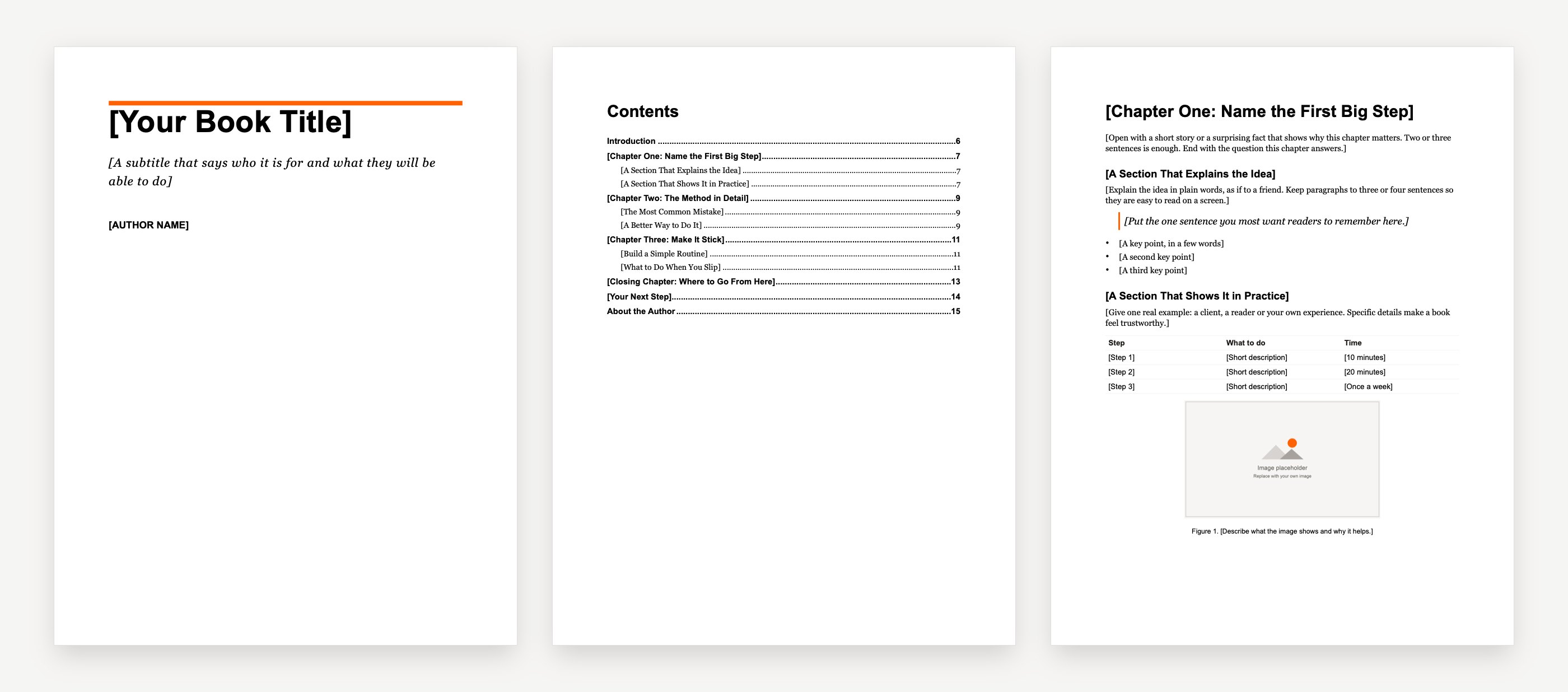


What is inside
- A "How to use this template" page to delete before you publish
- A cover page and a title page, made with styles (no images to replace)
- A copyright page with placeholder wording and a line for an ISBN
- An automatic table of contents that links to every chapter
- An introduction, three sample chapters and a closing chapter
- In each chapter: two sections, a pull quote, a bulleted list, a table, an image with a caption and a numbered "Try this" box
- A call to action page and an about the author page
- US Letter pages with 1 inch margins, Georgia body text at 11 pt with 1.15 line spacing
How to use this template
- 1Open the file in Microsoft Word.
- 2Replace each line in [square brackets] with your own words. Click in a line and type over it, so the style stays.
- 3Make each chapter title a Heading 1 and each section title a Heading 2 (Home, Styles). Heading 1 starts every chapter on a new page.
- 4Update the table of contents: right-click it, choose Update Field, then Update entire table.
- 5Change a font or color everywhere at once by changing the style: right-click the style in the Styles gallery and choose Modify.
- 6Save it as a PDF: File, Save As, then choose PDF.
How to set up an ebook in Word from scratch
If you would rather start from a blank document, these settings give you the same result.
- Page size. Go to Layout, Size. Use Letter (8.5 by 11 inches) for a guide or lead magnet that people read on screen or print at home. For a book-style layout, choose More Paper Sizes and set 6 by 9 inches, a common book size.
- Margins. Go to Layout, Margins. 1 inch on every side suits a Letter page. On a 6 by 9 page, about 0.75 inch is a good starting point.
- Body text. Set the Normal style to 11 or 12 pt in a common font such as Georgia, Arial or Calibri, with 1.15 line spacing (Home, Line and Paragraph Spacing).
- Headings. Use Heading 1 for chapter titles and Heading 2 for sections. The table of contents and the navigation pane are built from them.
- New pages. Start each chapter on a new page from the Heading 1 style: right-click Heading 1, Modify, Format, Paragraph, Line and Page Breaks, then tick Page break before. Put a page break (Insert, Page Break) after the cover, title page and copyright page.
- Table of contents. Click where it should go, then References, Table of Contents.
- Save as PDF. File, Save As, then PDF.
Word to EPUB or Kindle
A Word file is a good starting point, not a finished ebook. A PDF keeps your layout exactly, which suits a guide people download from your website. Ebook stores want text that reflows to fit each screen.
- Amazon KDP accepts .docx files for Kindle ebooks and says most of them convert well. Use simple styles, no page numbers and a linked table of contents. Our Kindle ebook template is set up that way.
- Kindle Create is Amazon's free app. It imports a Word file and lets you style it for Kindle before you upload.
- Whichever you choose, check the result in Amazon's free Kindle Previewer before you publish.
Source: KDP, supported ebook formats.
Word ebook template FAQ
Free to start · No card needed · Cancel anytime
How do I create an ebook in Microsoft Word?
Start from a template like this one, or set the page size and margins in Layout, use Heading 1 for chapters and Heading 2 for sections, and add a table of contents from References. Write your chapters, then save as PDF or upload the .docx to a store such as Amazon KDP.
How do I format an ebook in Word?
Use styles for everything: Normal for body text, Heading 1 for chapter titles and Heading 2 for sections. Set spacing and page breaks in the styles rather than pressing Enter or Tab, so the layout stays tidy and converts cleanly.
How do I format a Word document into an ebook format?
For a PDF ebook, use File, Save As, PDF. For Kindle, keep the .docx simple (styles, a linked table of contents, no page numbers) and upload it to KDP, or open it in Kindle Create first.
How can I convert a Word document to an ebook format?
Upload the .docx to Amazon KDP, which converts it to a Kindle ebook, or use Kindle Create. For other stores you need an EPUB: free tools such as Koobe’s Word to EPUB converter can make one from a .docx.
More free ebook templates

Google Docs ebook template
The same book layout for Google Docs. Make a copy and start writing.

Kindle ebook template
A reflowable Word manuscript for Amazon KDP, with a linked table of contents.
Ebook outline template
Plan your reader, your promise and every chapter on one or two pages.
Ebook cover templates
Ten original covers by genre, at the Kindle size of 1,600 by 2,560 pixels.
“Still went out the same week. That’s the part I couldn’t do on my own.”
 Claire Dobson · Freelance designer, Bristol
Your book is one sentence away
Describe it, watch Koobe build it, and download it when you’re happy. Your first book is free to create and preview.
Free to start · No card needed · Cancel anytime