How to Design an Ebook Cover That Sells
How to design an ebook cover that works at thumbnail size. Sizes for Kindle, Apple Books, Kobo and Google Play, layout rules, AI cover tips and a checklist.
 By Philip Ghezelbash
A good ebook cover has one clear idea, a title you can read at thumbnail size, and the right dimensions for the store. Shoppers see your cover as a small image next to dozens of others, so it has only a moment to say what the book is and who it's for. Design for that tiny version first.
This guide covers the sizes each store asks for, the design choices that matter, how to use AI for covers, and a checklist before you upload.
Start with the job of the cover
A cover does three things:
- Says what the book is about, at a glance.
- Signals the genre, so the right reader recognizes it.
- Makes people want to click, so they reach the description.
It does not need to explain the whole book, show the author's life story or fit everything in. Less is better.
Cover sizes by store
Ebook covers are a single front image, in RGB, measured in pixels. Specs change, so check each store's help page before you upload. These are the figures we found as of October 2026.
| Store | Recommended size (width x height) | Minimum | File type |
|---|---|---|---|
| Amazon KDP | 1,600 × 2,560 px (1.6:1 height to width) | 625 × 1,000 px | JPEG or TIFF, RGB, under 50 MB |
| Apple Books | No fixed size | At least 1,400 px on the shorter side | JPEG or PNG, RGB |
| Kobo | No fixed size; portrait, width about ¾ of the height | No published minimum | JPEG or PNG, 5 MB or less |
| Google Play Books | 1,600 × 2,560 px works | 640 px minimum | JPEG, PNG, TIFF or PDF |
A single cover at 1,600 × 2,560 px meets or exceeds the requirements of the major stores. Don't enlarge a small image to reach a size, because it looks soft. Start big and scale down.
Koobe exports covers as a 1,600 × 2,400 px JPEG, which is above KDP's minimum and meets Apple Books' 1,400 px minimum. KDP's ideal is 1,600 × 2,560 px. For a checker and a size reference, use the ebook cover size guide.
Print covers are different
If you also publish a paperback, the cover is a full wrap: back, spine and front, measured in inches, with bleed, and its size depends on the trim size and page count. KDP has its own cover tools and templates for this. Don't reuse an ebook cover file for print.
What makes a cover work
1. Make the title readable small
Shrink your cover to about the size of a postage stamp. Can you still read the title? If not, enlarge it or shorten it. Use big, simple lettering. Short titles help. The subtitle can be smaller, but it should still be legible at a glance, or move it out of the cover and into the listing.
2. Use one clear idea
One image, one color idea, one focal point. Busy covers with several images and effects turn to mush at thumbnail size. If you're unsure, remove something.
3. Fit the genre
Look at the top sellers in your category. You should look like you belong there, with a layout and style readers recognize, while still standing out a little. A business guide that looks like a romance novel confuses buyers.
Typical patterns for nonfiction:
- Business and self-help: Bold type, clean backgrounds, high contrast.
- Practical how-to: Clear title, simple illustration or photo, a subtitle that states the result.
- Workbooks and planners: Friendly colors, a hint of the layout inside.
- Technical: Restrained palettes, diagrams or patterns.
4. Pick fonts with care
Use one or two typefaces. A heavy sans serif works well for titles in business and how-to categories. Avoid thin, decorative fonts that vanish at small sizes. Keep the title, subtitle and author name in a clear order of size.
5. Keep strong contrast
Dark text on a light background, or light text on a dark one. Avoid text over a busy photo without a solid overlay, and watch for colors that look similar when converted to grayscale (many e-readers are black and white).
6. Leave breathing room
Keep important text away from the edges. Store listings and apps crop and round images in different ways.
7. Stay consistent across a series
If you plan more than one book, use the same layout, fonts and color logic, so readers recognize them as a set.
How to make a cover
You have a few options.
| Option | Good for | Watch for |
|---|---|---|
| A designer | Books where the cover is a big part of sales | Cost, and clear briefs and revisions |
| A template tool such as Canva | Short guides and lead magnets | Many people use the same templates |
| KDP's Cover Creator | A free, quick start for Kindle | Limited styles |
| An AI cover tool or built-in generator | Fast options, such as Koobe's four covers per run | Check text accuracy, and disclose AI images where stores require it |
Koobe designs four covers per run with your title, subtitle and author name lettered in, and checks the spelling on every cover before you see it. You can switch between options and pick the one that works best at thumbnail size.
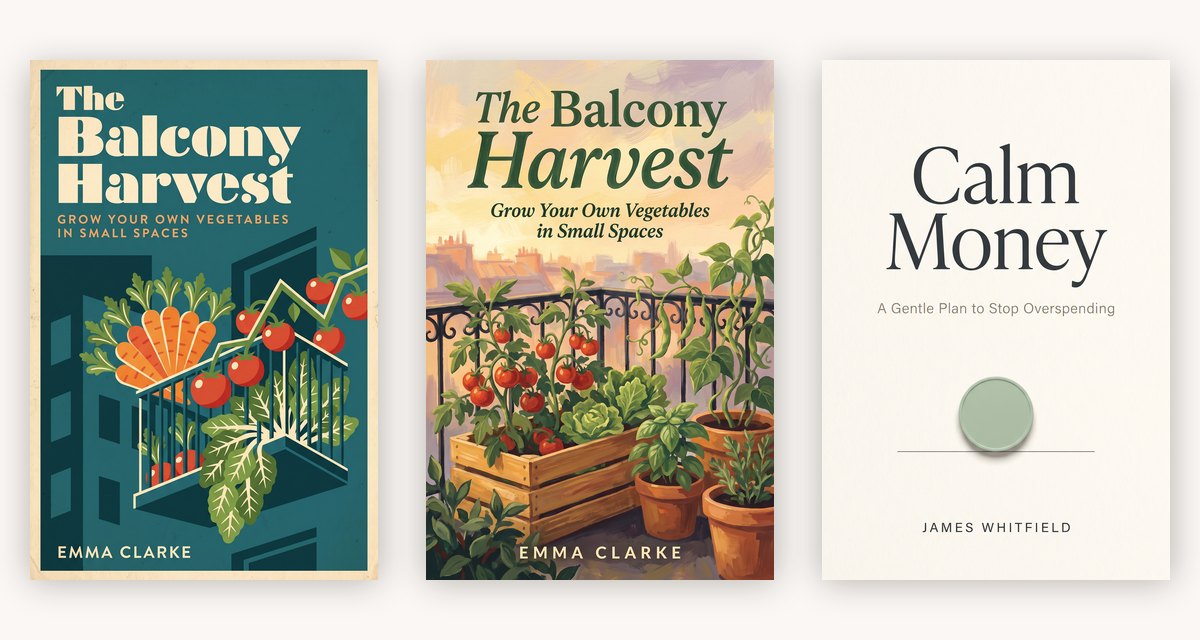
Using AI to make covers
AI image tools can produce striking backgrounds quickly, but there are things to watch.
- Lettering. Many image tools garble text, so spelling errors on the cover are common. Check every letter, or add the title in a design tool afterward.
- Disclosure. Amazon KDP counts AI-generated images, including covers, as AI-generated content that you must tell it about. Apple Books treats an AI-made cover on a book written by a person as AI-assisted, with no disclosure needed. Etsy has its own AI rules. See Can I publish a book written by AI on Amazon?.
- Rights. Check the terms of the tool you use for commercial use.
- Look-alikes. Don't prompt for the style or elements of a specific bestseller's cover, and avoid anything that imitates another book or author. It can get your listing removed.
- Odd details. Look for distorted hands, strange objects and extra fingers in any image with people.
Test your cover before you upload
Run these checks.
- Thumbnail test. Shrink it to about 150 pixels tall. Is the title readable?
- Side-by-side test. Place it next to five top sellers in your category. Does it look like it belongs, and does it still stand out?
- Grayscale test. Convert it to black and white. Is it still clear?
- Phone test. View it on a phone screen.
- Spelling test. Read the title, subtitle and author name letter by letter.
- Ask a stranger. Show it for three seconds and ask what the book is about.
Checklist before you upload
- The size meets each store's requirement (for KDP, ideally 1,600 × 2,560 px)
- RGB, in JPEG or the format the store accepts
- Title readable at thumbnail size
- One clear idea, with strong contrast
- Looks right for your genre
- No spelling mistakes
- Title and author name match your book details exactly
- AI-generated images are disclosed where required
- No imitation of another book's cover
KDP requires the title, subtitle and author name on the cover to match your book details, and a mismatch can hold up review. Our guide on how to publish an ebook on Amazon KDP covers the upload step.
Common mistakes
- Tiny, thin or ornate lettering that disappears in search results
- Too many elements fighting for attention
- A cover that doesn't match the genre, so the wrong readers click and the right ones skip
- Low resolution, with soft or pixelated text
- Stretching an image to reach the required size
- A spelling error on the cover, which is hard to fix after reviews appear
- A cover for the wrong format, such as using a flat ebook cover for print
Where Koobe fits
Koobe designs the cover as part of the book. You get four options per run, with your title, subtitle and author name lettered in and the spelling checked, then you export the cover as a 1,600 × 2,400 px JPEG next to your EPUB and PDF. Whatever tool you use, judge the cover at thumbnail size before you decide.
Describe your book in a sentence. Koobe plans the chapters, writes them, designs the cover and exports a PDF and EPUB. Your first book is free.

“Files were ready for KDP, which is what I actually needed. First book I’ve finished.”
The short answer, again
- Design for thumbnail size first.
- Use one clear idea, big simple type and strong contrast.
- Match the look of your genre.
- For Kindle, aim for 1,600 × 2,560 px in RGB. Check other stores' specs.
- Check the spelling letter by letter, and disclose AI images where stores require it.