How to Publish an Ebook on Amazon KDP
Publish your ebook on Amazon KDP step by step, from account and tax interview to AI disclosure, upload, KDP Select, royalties and pricing.
 By Philip Ghezelbash
To publish an ebook on Amazon, you create a free Kindle Direct Publishing (KDP) account, complete the tax interview, then fill in three pages for your book: details, content and pricing. Once you hit publish, Amazon reviews the book and it usually goes live within about three days.
This guide walks through each step, with the rules and numbers from KDP's own help pages as of October 2026. Amazon changes things from time to time, so follow the links to confirm anything that affects your money.
Before you start
Have these ready:
- Your manuscript, edited and proofread, as an EPUB, DOCX or KPF file.
- Your cover as a JPEG or TIFF image.
- A book description, a few short paragraphs built around what the reader gets.
- Up to seven keywords and an idea of which categories fit.
- Your bank and tax details, so Amazon can pay you.
You don't need an ISBN for a Kindle ebook. KDP assigns an ASIN (Amazon's own identifier) automatically. You do need an ISBN if you later publish a paperback or hardcover, though KDP can give you one free.
Step 1: Create your KDP account
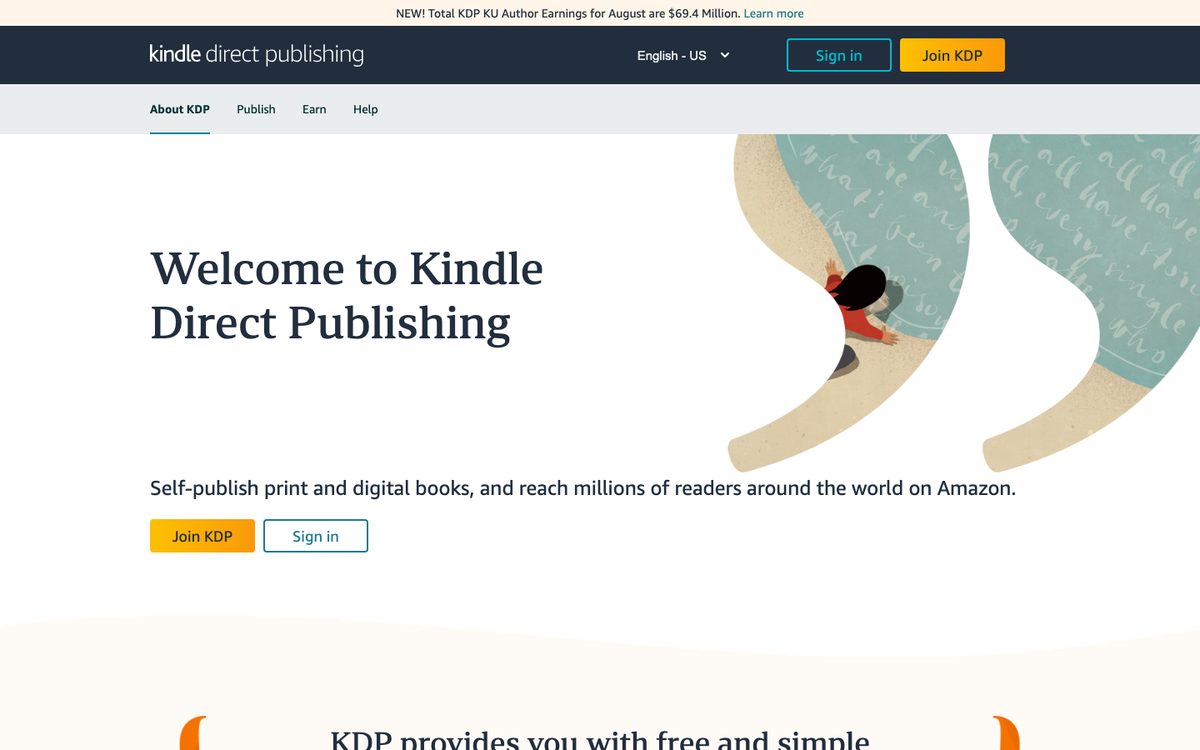
Go to kdp.amazon.com and sign in with an Amazon account or create a new one. Many authors use a separate account for publishing so business and personal shopping stay apart.
Then finish your account setup: your name or business name, address, and the bank account where royalties will be paid.
Step 2: Complete the tax interview
KDP won't let you publish until your tax profile is done. Amazon must receive and validate your tax identity before you can publish new books or update existing ones.
The interview is a guided questionnaire. Based on your answers it produces the right form:
- US citizens, residents and US entities: Form W-9.
- Non-US individuals: Form W-8BEN, which can claim reduced withholding under a tax treaty if your country has one with the US.
- Non-US businesses: Form W-8BEN-E.
If you're outside the US, entering your local tax number where asked can lower the US tax withheld from your royalties. If you're unsure, ask a tax professional. Amazon can't advise you.
Step 3: Enter the Kindle eBook details
From your Bookshelf, choose Create and then Kindle eBook. The first page is about how the book appears on Amazon.
- Language. The language the book is written in.
- Title and subtitle. They appear on your product page. Together they must be under 200 characters. Use the subtitle to make the promise clear, but don't stuff it with keywords.
- Series. Only if the book is part of one.
- Author and contributors. Your pen name works here.
- Description. Lead with the problem and the result. Short paragraphs and a simple bulleted list of what's inside read well.
- Publishing rights. Confirm you hold the rights (or that it's public domain, which limits you to the 35% royalty).
- Primary audience. Whether the book contains sexually explicit content, and the reading age if it's for children.
- Keywords. Up to seven keywords or short phrases. Think about how a reader would search, not just what the book is called.
- Categories. Up to three categories. Pick ones that genuinely describe the book. Wrong categories hurt more than they help.
- Pre-order. You can release now or set a future date. KDP has specific pre-order rules, including deadlines for your final file.
Step 4: Answer the AI content question
KDP asks whether you used AI tools to create the text, images or translations in your book. Answer it honestly. Here's how KDP's content guidelines draw the line:
- AI-generated means an AI tool created the actual content, text, images or translations. It still counts as AI-generated even if you edited it substantially afterward. You must disclose this.
- AI-assisted means you created the content yourself and used AI to edit, refine, error-check or improve it. You don't have to disclose this.
So if an AI tool drafted your chapters or made your cover, say yes and select what applies. If you wrote every word and used a grammar checker, the answer is no.
Disclosure isn't the only rule. You're responsible for making sure the book follows KDP's content guidelines and doesn't infringe anyone's rights. If you used an AI tool like Koobe to draft, read and fact-check every chapter before you upload. Koobe's own terms also forbid mass-producing low-quality, misleading or copycat books.
Step 5: Upload your manuscript
On the content page you upload the book file. KDP's recommended formats are:
- EPUB. The standard ebook format. It must meet the Kindle Publishing Guidelines.
- DOCX. A Word file. Most convert well, but check headings and spacing in the preview.
- KPF. The format made by Amazon's free Kindle Create app.
KDP also accepts some other formats, including PDF in a limited set of languages, but PDFs often convert poorly to reflowable Kindle books. If you have a choice, upload EPUB. Our PDF vs EPUB guide explains why.
You'll also choose whether to apply DRM (digital rights management), which limits copying of the file.
Step 6: Upload your cover
Upload your cover on the same page. KDP's cover requirements:
| Requirement | KDP spec |
|---|---|
| File type | JPEG or TIFF |
| Ideal size | 2,560 px tall × 1,600 px wide (1.6:1) |
| Minimum size | 1,000 px tall × 625 px wide |
| Maximum file size | Under 50 MB |
| Color | RGB |
KDP also has a free Cover Creator if you don't have a cover yet. Koobe exports the cover as a 1,600 × 2,400 px JPEG, which is above KDP's minimum. Our cover size guide lists the sizes for other stores too.
Step 7: Preview the book
Use the online previewer, or download the free Kindle Previewer app, to check your book on phone, tablet and Kindle screens. Look for:
- A working table of contents.
- Chapter titles that start on a new screen.
- No odd blank pages, giant gaps or stray characters.
- Images (if any) that fit the screen.
Fix problems in your source file and upload again. It's much easier now than after the book is live.
Step 8: Decide on KDP Select
At the top of the pricing page you'll see the option to enroll in KDP Select. It's free, and the choice matters.
What you get:
- Your book is included in Kindle Unlimited, Amazon's subscription. You earn a share of a monthly fund based on pages read.
- Access to Kindle Countdown Deals (limited-time discounts on Amazon.com and Amazon.co.uk) and Free Book Promotions.
- The 70% royalty on sales to customers in Brazil, Japan, Mexico and India, which only applies to Select titles.
What you give up:
- Exclusivity. While enrolled, you can't sell or give away the ebook in digital form anywhere else: not on Apple Books, Kobo, Google Play or your own website. Print and audio editions aren't affected.
- Enrollment lasts 90 days and renews automatically unless you opt out before the renewal date.
A rough rule: if most of your readers find you on Amazon, Select is worth trying. If you sell a lot directly or want to be on every store, stay out. You can try one 90-day term and decide later. Our guide to publishing on every major store compares the two routes.
Step 9: Set your royalty option and price
KDP gives you two royalty options for ebooks.
| 35% option | 70% option | |
|---|---|---|
| Royalty | 35% of list price (excluding VAT) | 70% of list price (excluding VAT) minus delivery costs |
| Amazon.com price range | $0.99 to $200 (minimum rises to $1.99 or $2.99 for larger files) | $2.99 to $12.99 |
| Delivery costs | None | $0.15 per MB on Amazon.com |
| Where it applies | All sales | Sales in eligible countries; 35% elsewhere |
| Public domain books | Yes | No |
A few things to know:
- The 70% price band changed. Effective July 7, 2026, KDP raised the top of the 70% band on Amazon.com from $9.99 to $12.99, with matching changes in other marketplaces. See the list price requirements for every currency.
- Delivery costs depend on file size. A text-only ebook is usually small, so this is often a few cents. Image-heavy books cost more to deliver. KDP shows the file size after you upload.
- Price each marketplace. KDP can convert your US price automatically, or you can set each one yourself so it ends in a sensible number.
Here's a worked example on Amazon.com. A $4.99 ebook with a 1.5 MB file:
- 70% option: delivery cost is 1.5 × $0.15 = $0.225. Royalty = 0.70 × ($4.99 − $0.225) ≈ $3.34.
- 35% option: royalty = 0.35 × $4.99 ≈ $1.75.
For most nonfiction ebooks priced between $2.99 and $12.99, the 70% option pays more. Try your own numbers below.
To choose a price, look at similar books in your categories and note what they charge for a similar length. Short guides and new authors often start lower and raise the price once reviews arrive.
Step 10: Publish and wait for review
Click Publish Your Kindle eBook. According to KDP's timelines:
- Your book usually goes live within 72 hours, and KDP allows up to three business days.
- The product page and cover thumbnail can take up to 72 hours to appear.
- The book can take up to 72 hours after going live to show up in search.
- While the book is in review, you can't make changes.
If something is wrong, KDP emails you and the book stays unpublished until you fix it. Common reasons are a mismatch between the cover and the title details, missing content, or metadata that breaks the guidelines.
Royalties are paid about 60 days after the end of the month in which the sale happened, once you reach the payment threshold for your payment method.
After you publish
- Check the product page on Amazon. Click "Read sample" once it's available and make sure it starts well.
- Fill in your Author Central profile so readers can see your bio and other books.
- Tell your audience. Email list, social posts, your website. Early sales and honest reviews help Amazon show the book to more people. See how to promote an ebook and how to get book reviews without breaking Amazon's rules.
- Update when you need to. You can change the description, keywords, price and manuscript later. Updates go through review again.
Where Koobe fits
Koobe writes and designs the book and exports the files KDP asks for: an EPUB 3 for the Kindle ebook, a 1,600 × 2,400 JPEG cover, and a print interior PDF (no cover, chapters on right-hand pages, mirrored gutters) if you also want a paperback. Koobe doesn't publish to Amazon for you. You upload the files and answer the AI question yourself, which is exactly as it should be, since you're the publisher.
Describe your book in a sentence. Koobe plans the chapters, writes them, designs the cover and exports a PDF and EPUB. Your first book is free.

“Files were ready for KDP, which is what I actually needed. First book I’ve finished.”